Krisp Microphone and Krisp Speaker: What They Do, and Fixes When They Vanish
The two virtual devices behind every Krisp call, where to pick them, and what to check when they disappear.
Krisp Microphone and Krisp Speaker are two virtual audio devices that the Krisp desktop app adds to your computer when you install it. Krisp Microphone carries your voice out to the call with the noise taken off; Krisp Speaker carries everyone else in with the noise taken off. You select them in your call app where you'd normally pick your headset, and Krisp keeps using that real headset behind them. That's from Krisp's own help centre, whose device articles were updated in early October 2026 and which I read on 9 Oct 2026.
These devices exist only on desktops that Krisp supports: macOS 14 and newer, or 64-bit Windows 10 and 11. They don't appear on Linux, ChromeOS, iPhone or Android. And because Krisp now has no permanent $0 tier, they only do their job while you're inside the 7-day trial or on a paid plan; after the trial, Krisp's Terms of Use say access stops.
What the two devices actually are
Think of each virtual device as a door Krisp stands behind. Your real microphone feeds the Krisp app, Krisp removes the noise on your own machine, and the cleaned signal comes out of a device called Krisp Microphone. Zoom, Teams or whatever you call from listens to that device instead of to your headset. The incoming side runs the same way in reverse: the call app plays into Krisp Speaker, Krisp cleans what arrives, and you hear it through your real headphones.
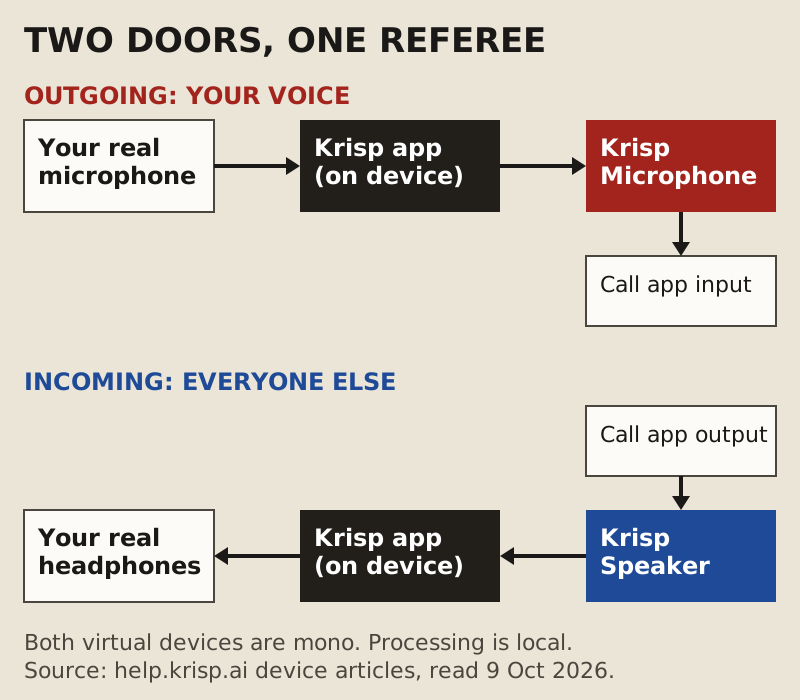
Three details from that help article matter in practice. Both devices are mono, one channel, which is fine for speech and wrong for anyone trying to send stereo music. Krisp can't take another virtual microphone as its own input, so you can't stack it behind a mixer's virtual mic. And Krisp Speaker can't be chosen at browser level, which shapes what you get on a call that runs in a browser tab.
Selecting them in Zoom, Teams, Meet and Discord
The rule is the same everywhere: open the app's audio settings, set the input to Krisp Microphone, and set the output to Krisp Speaker where the app allows it. What changes is where each app hides its dropdowns, and whether its own noise filter will argue with Krisp's.
Zoom (desktop)
Open Settings, then Audio, and pick Krisp Microphone and Krisp Speaker in the two device lists. Zoom keeps its own background noise suppression running underneath, with levels Auto, Low, Medium and High. If your voice starts to sound thin with both working on it, drop Zoom's level to Low, which Zoom describes as minimal suppression, and let Krisp do the heavy lifting.
Microsoft Teams (new desktop app)
Open Settings and more, choose Settings, then Devices, and set the microphone and speaker to the Krisp devices. Teams' own noise suppression sits on that same page as one on/off switch in the new desktop app. Keep one cleaner in charge: two models chewing on the same voice rarely sounds better than one.
Google Meet (browser)
In Meet, go to More options, pick Settings, open Audio and choose Krisp Microphone as the microphone. The speaker side is where browsers get awkward, because Krisp's help centre says Krisp Speaker can't be selected at browser level. Expect your outgoing voice to be cleaned in a browser call, and check Krisp's own browser setup guide before you count on incoming cleanup there.
Discord
Discord has two separate things with Krisp's name on them. Under User Settings, Voice & Video, you can choose Krisp Microphone as your input device, which routes you through the Krisp app. The same page also has Discord's built-in Noise Suppression option called Krisp, a model that runs inside Discord at no cost. On a Mac, that built-in option only runs on Apple silicon with macOS 12 or newer. Use one or the other, not both at once.
The device vanished: five causes
"Krisp Microphone not showing" is the most common complaint about these devices, and Krisp's help centre lists the fixes. Grouped by cause, they come down to five checks, in the order I'd run them.
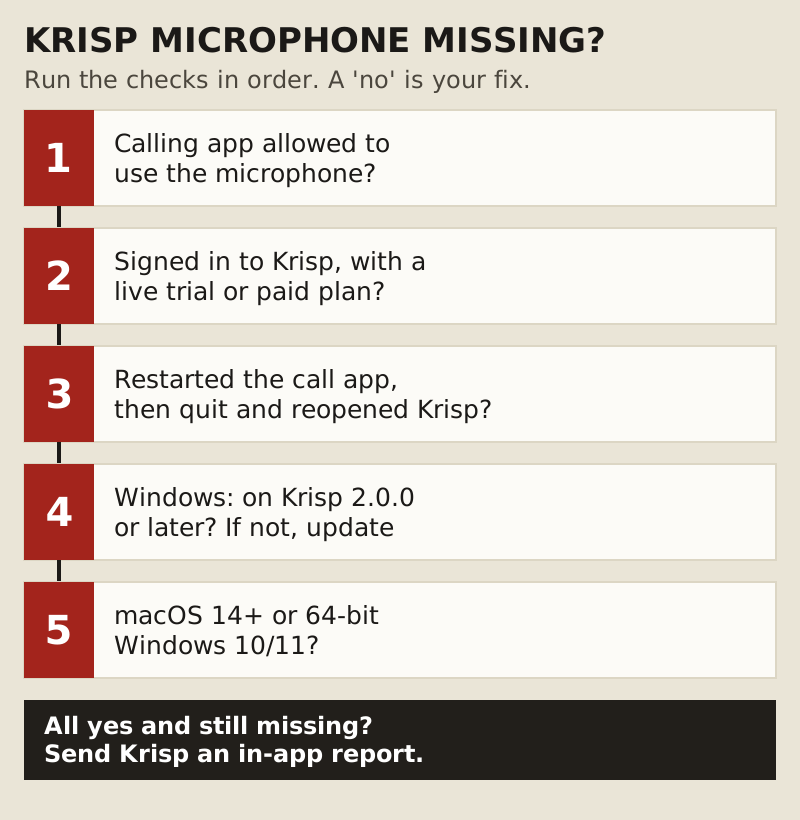
- The calling app can't use the microphone. Krisp's first fix is to allow the calling app microphone access. On a Mac that's System Settings, Privacy & Security, Microphone, with a switch per app.
- You're signed out, or the trial has ended. Krisp asks you to check you're signed in. Without an active trial or paid plan, access stops under its Terms of Use, so a lapsed trial looks exactly like a broken install.
- Something started in the wrong order. Restart the calling app, then quit and reopen Krisp. Logging out of Krisp and back in is the next step on Krisp's own list.
- An old Windows build is stuck. Krisp mentions a device error state on Windows versions before 2.0.0. Update, and if that fails, reinstall.
- The system isn't supported. Krisp needs macOS 14 with 8 GB of RAM and either Apple silicon or an Intel Core i5 on a Mac, or 64-bit Windows 10 or 11 on a Core i5 or Ryzen 5 with 8 GB. Older macOS versions and other platforms get no devices.
If none of those works, Krisp's last step is an in-app report. Send it from inside the app, so the report carries the details support needs.
Turning Krisp off cleanly
The neat way to stop using Krisp is the reverse of starting. Switch each call app back to your real microphone and speaker first, then quit Krisp. Do it in that order and no app is left pointing at a device whose source has gone away. That matters most at the end of a trial you've decided not to continue, because that's when people find a call app still set to Krisp Microphone weeks later.
If you only want Krisp out of one app, change that app's devices and leave the others alone. The virtual devices don't need to be removed for your real headset to work; they simply sit in the list unused.
Edge cases
SteelSeries Sonar and other virtual mics
Krisp can't take a virtual microphone as its input, so a chain like Sonar's microphone feeding Krisp won't work. Pick one cleaner for each call. My SteelSeries Sonar card is about exactly that choice.
Recording in OBS
Add an Audio Input Capture source and point it at Krisp Microphone. If you also have an OBS Noise Suppression filter on that source (RNNoise, Speex or NVIDIA Noise Removal), turn it off, so you aren't cleaning one voice twice.
Music and stereo
Both Krisp devices are mono. If you need to send stereo audio, such as an instrument or a music bed, route it through the real device and the call app's own music settings rather than through Krisp.
Ringside questions
What is Krisp Microphone?
It's a virtual microphone the Krisp desktop app creates on install. Your real mic feeds Krisp, Krisp removes background noise and voices on your computer, and the cleaned signal appears as Krisp Microphone for any call app to select.
What does Krisp Speaker do?
It cleans the incoming side. Set it as the speaker in your call app and Krisp removes noise from other people's audio before it reaches your real headphones. Krisp's help centre notes it can't be selected at browser level.
Why is Krisp Microphone not showing in Zoom or Teams?
Usually one of five things: the app lacks microphone permission, you're signed out or out of trial, something launched in the wrong order, an old Windows build needs updating, or the system isn't supported. Krisp's own list includes restarting the calling app, so do that after each fix.
Does Krisp Microphone work after the trial ends?
Not without a plan. Krisp's Terms of Use say access stops when the 7-day trial ends unless you buy a subscription; on 9 Oct 2026 Core cost $8 per user per month on an annual plan, or $16 paid monthly. Switch your call apps back to your real mic if you don't continue.
Can I use Krisp Microphone on my phone?
No. The virtual devices are desktop-only. Krisp's mobile app records and transcribes meetings, and on iOS it now cleans outgoing calls to US numbers placed through the app, but it doesn't add a Krisp Microphone for other apps to use.